Tech Talk: How Electron went Wayland-native, and what it means for your apps

Tech talks are a new blog post series where we share glimpses into our work on Electron. If you find this work interesting, please consider contributing!
When Electron switched to Wayland on Linux last fall, most people didn't notice.
Major Linux distributions adopted the modern display protocol years ago, and both the KDE Plasma and GNOME desktop environments are in the process of dropping X11 support completely.
But a platform migration isn't complete without apps, and a large part of the Linux app ecosystem went through a second Wayland transition last August — well after most distros had changed their defaults. That's when Chromium turned on Wayland by default, bringing Electron and dozens of Linux desktop apps along with it.
The third impact: Electron goes Wayland-native
Wayland is supported out of the box in Electron 38.2 and newer. As long as your apps are up-to-date, it just works. (If you were previously launching your Electron apps with very long commands like CONFUSING_OZONE_VARIABLE --ozone-platform=wayland, you no longer need to do that.)
This change was possible because the Chromium and Electron projects have been working on Wayland support for more than half a decade. But until recently, Chrome and Electron apps continued to use X11 by default, even when launched in a Wayland session. This wasn’t a big issue, since X11 apps still work fairly well on Wayland by running inside an invisible X server called Xwayland.
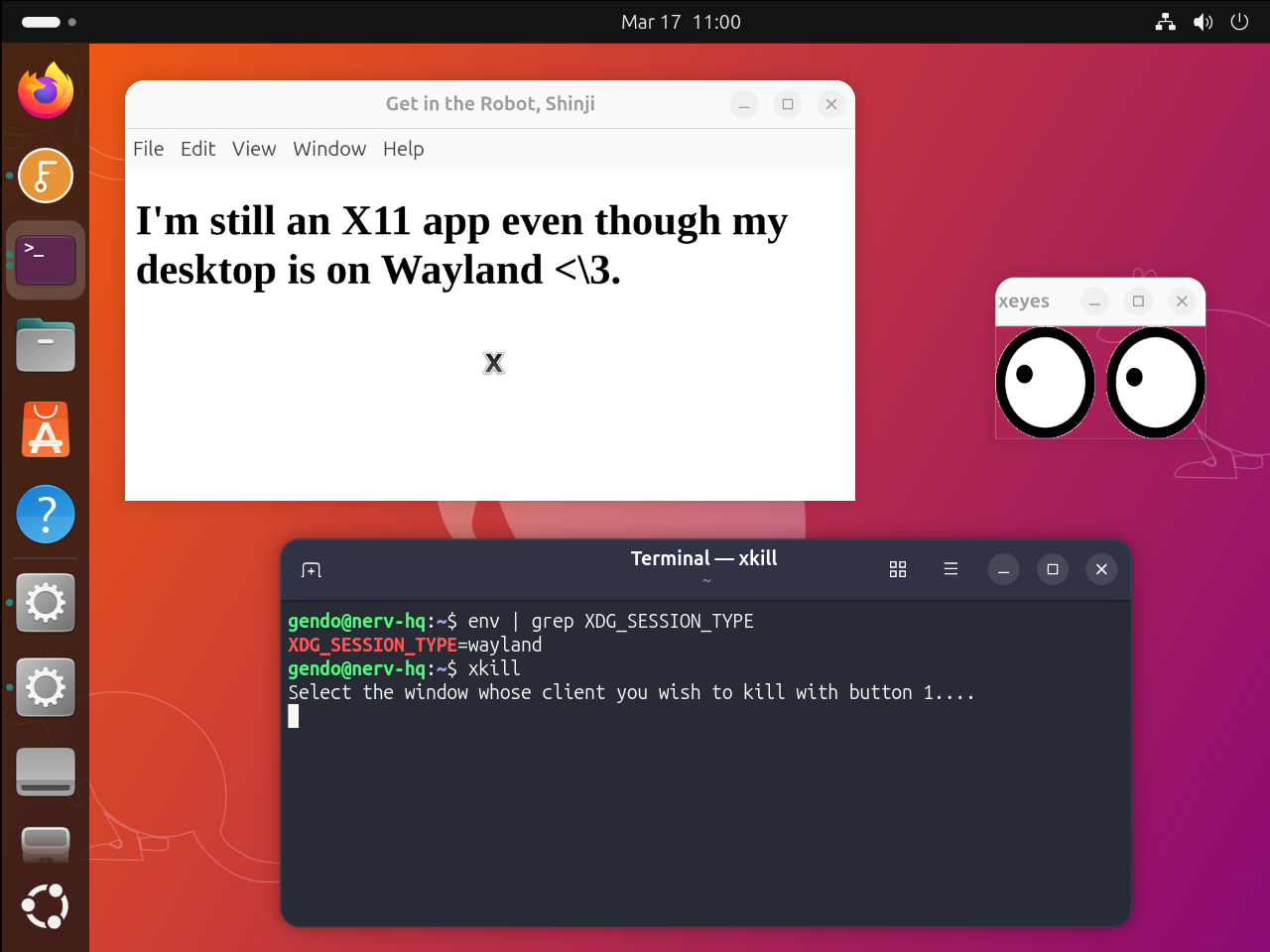
Running apps through a compatibility layer is not the same as running them directly on Wayland. On Wayland, there’s less sitting between your app and the compositor, so there's lower overhead and much stronger isolation between applications. Modern Wayland compositors also let apps take advantage of newer platform and display features like variable refresh rates, HiDPI and fractional scaling, and HDR.
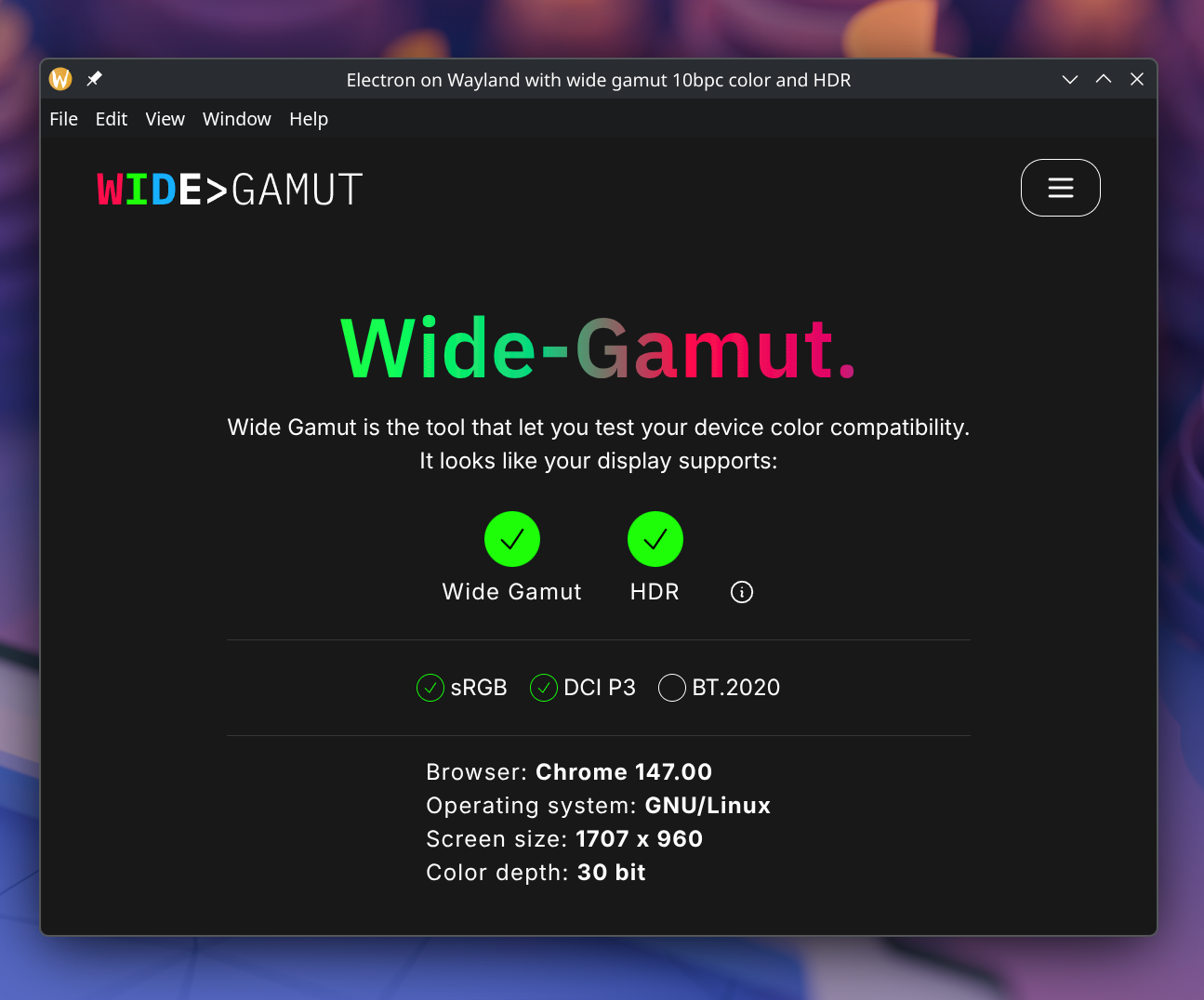
These are all good reasons for Electron to make the switch. In late September, Electron followed Chromium’s lead and began defaulting to Wayland. And as apps began to update, people who had been “using Wayland” without issues for months or years started to find out what it was really like to experience their apps on Wayland for the first time.
Wayland’s house, Wayland’s rules
Supporting Wayland required dozens of changes throughout Chromium and Electron, from internals to developer-facing APIs. It also required a different way of thinking about what desktop apps should be able to do.
Wayland reconsiders assumptions made by older systems and asks whether apps should be able to:
- Take focus away from other apps
- View and interact with windows from other apps
- Respond to mouse and keyboard input when not focused
- Choose where to position their own windows on the screen (and which physical monitor to appear on)
- Resize their windows at any time
Wayland's answer to these questions is essentially “no.” When you open a window, the compositor — not the app developer — decides where it goes. Apps cannot unilaterally move, resize, or focus their windows without user input, and they can only interact with the rest of the desktop through optional protocol extensions and XDG portals.
These kinds of rules are understandable; no one likes it when a misbehaving app steals focus or loads halfway off the screen. But it can still surprise people when their apps suddenly lose access to familiar affordances on Wayland. This is especially the case for a cross-platform framework like Electron, which exists to help developers achieve consistent results everywhere.
Some widely used Electron APIs that work on X11, macOS, and Windows are not available on Wayland. For example, win.setPosition(x, y) and screen.getCursorScreenPoint() aren't supported, as Wayland deliberately forbids apps from accessing global screen coordinates.
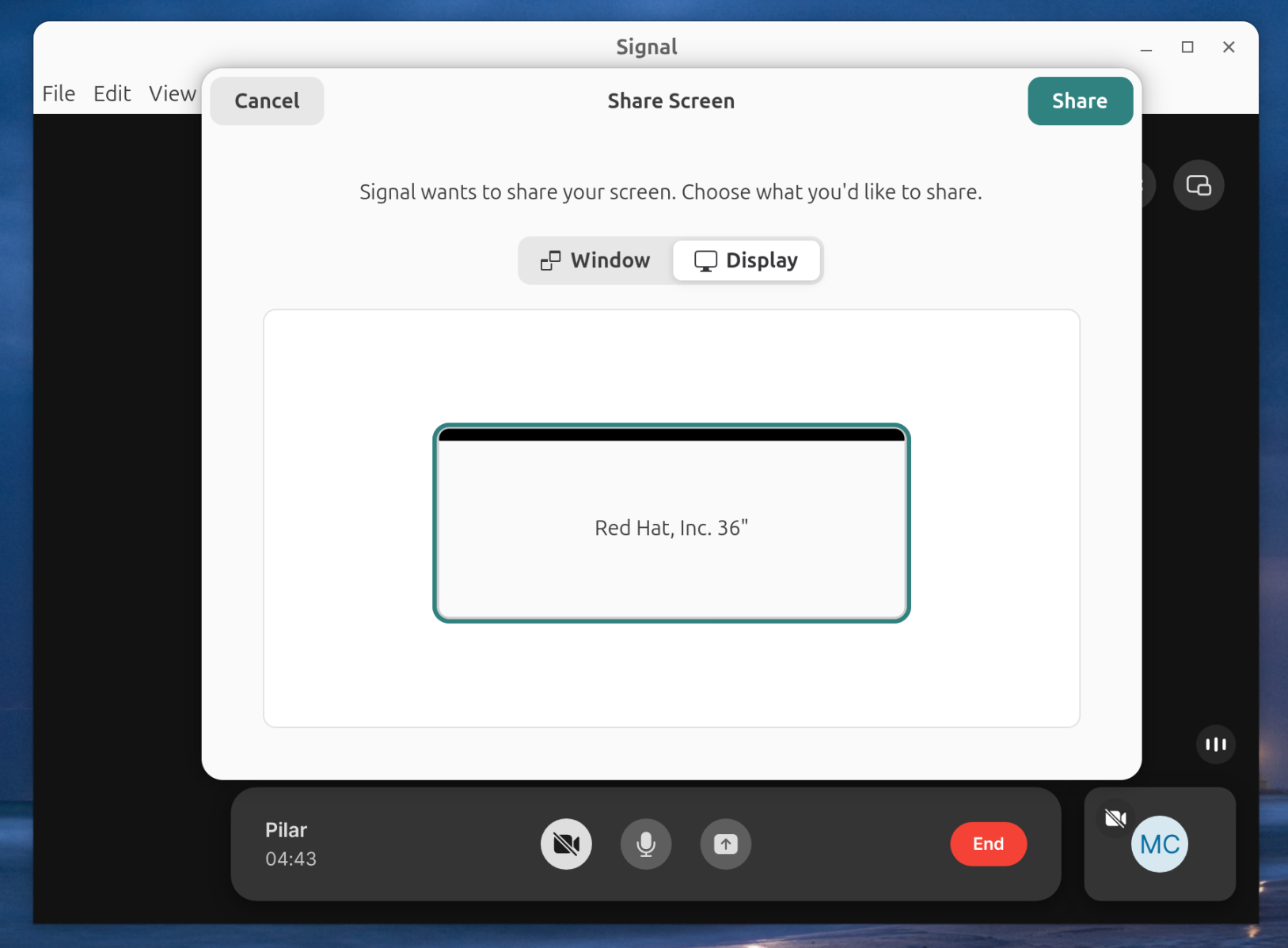
Other features work differently: recording the screen with desktopCapturer and setting keyboard shortcuts with globalShortcut are more restricted, and both heavily depend on the desktop environment and portal versions. Here's what it looks like when screen sharing in Signal Desktop on GNOME 48.
Making this more complicated for developers is the fact that Wayland isn't a single piece of software, but a protocol. Every compositor implements it a little differently, almost like browser engines. (There are even protocol support trackers that look like they came from MDN or CanIUse.)
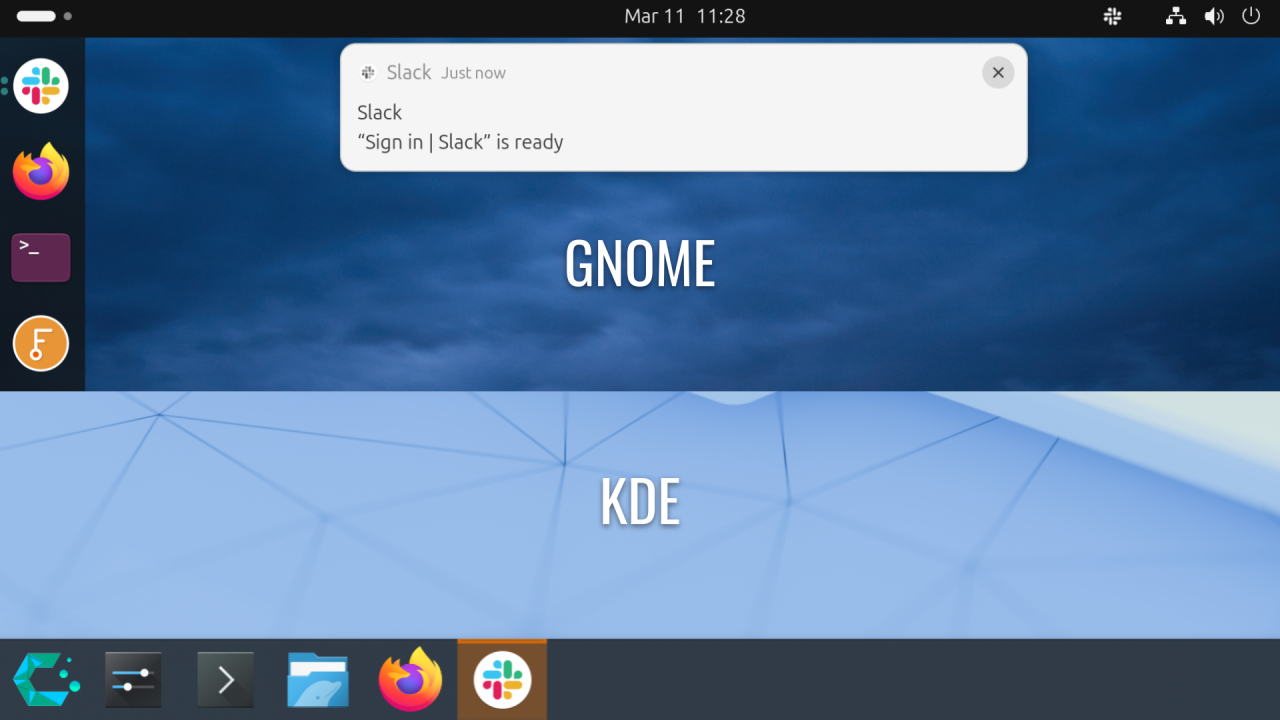
So when Slack tries to focus its main window with win.focus(), GNOME's compositor (Mutter) shows a notification. On KDE Plasma (KWin), the app icon flashes in the panel instead. Neither outcome is what the app's developers had in mind, but both are valid interpretations of the activation spec.
Some capabilities simply work better on Wayland than on X11, including anything to do with colors, transparency, and hardware-accelerated rendering. win.setOpacity(n) is an example of an Electron API which hasn't been available on Linux in the past, but which will now be feasible to support.
Even the stricter restrictions can benefit apps. When 1Password runs on Wayland, its SSH agent lets users confirm requests with a single click instead of asking them to enter their passwords. This is safe because Wayland's input isolation is strong enough to prevent the prompt from being skipped with clickjacking — only a real human being can click the button.
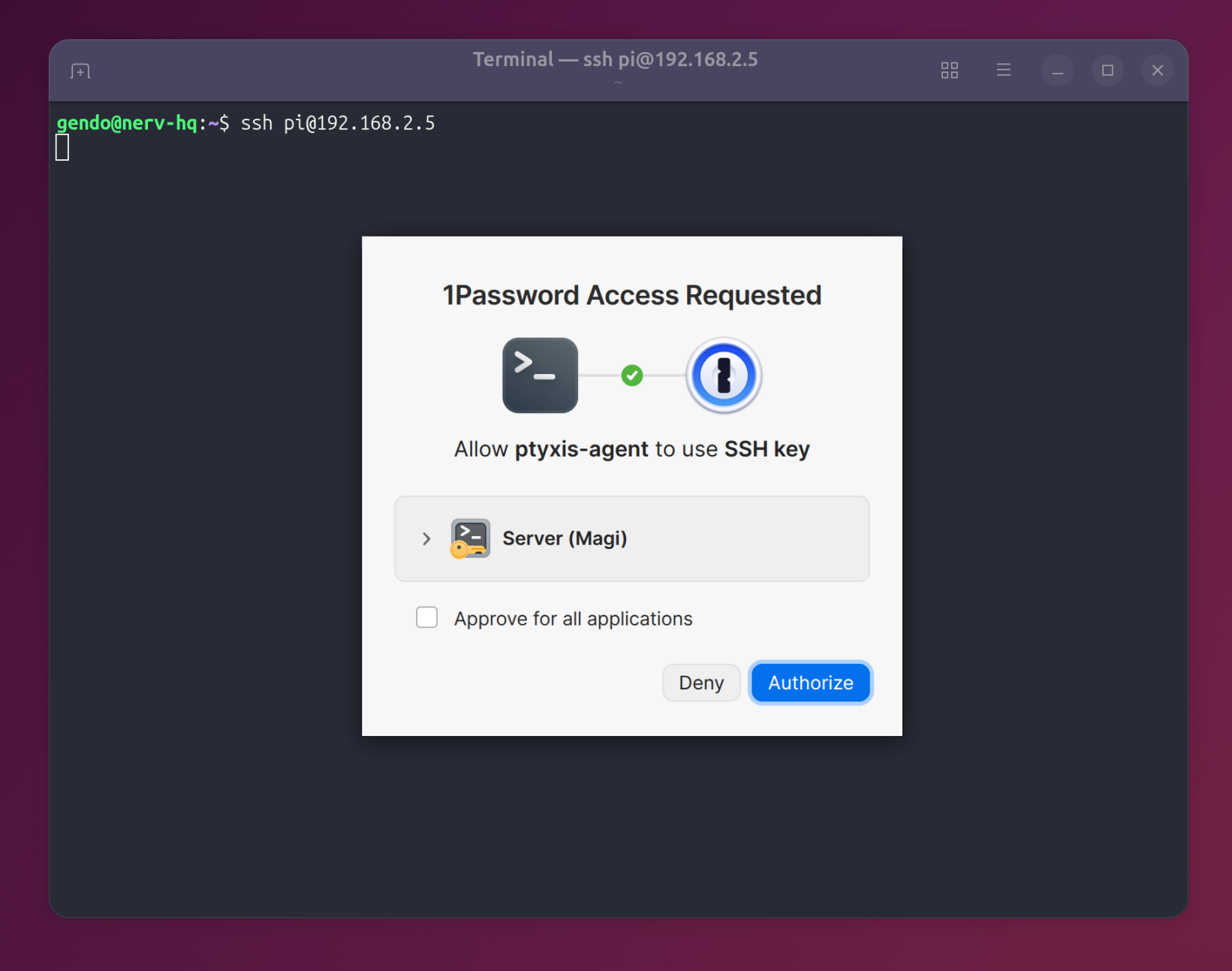
The basic tradeoff is that Wayland restricts some of what apps can do but also enables them to be more capable and secure. And in one area, Wayland gives developers more flexibility and more responsibility than before: client-side decorations (CSD).
Understanding CSD, or when a window isn’t a window
The Wayland protocol is very lightweight, and its simplicity extends to the way it draws window frames. On X11, the window manager typically supplies a window’s title bar and frame decorations. But when you create a window (xdg_toplevel) on Wayland, all you get back from the compositor is a plain rectangle.
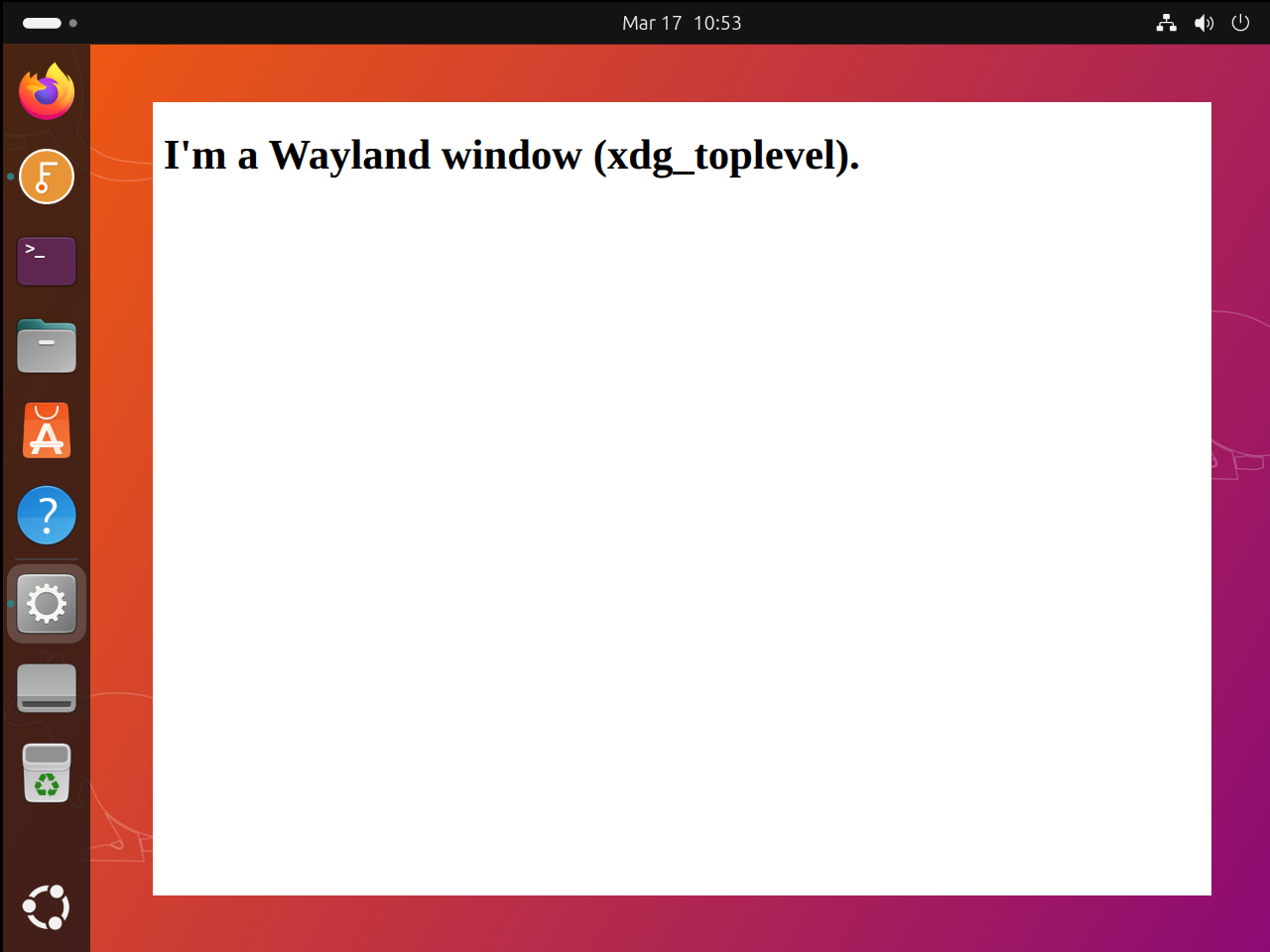
That rectangle is a powerful canvas. On a modern compositor like GNOME’s Mutter, it’s triple-buffered and GPU-accelerated. But if you want any of the trimmings users might expect — title bar buttons, drop shadows, even resize handles — you have to add them yourself. This requirement is called client-side decorations (CSD), and it’s one of the major differences between X11 and Wayland.
Electron already had some support for client-side decorations, provided by a class called ClientFrameViewLinux which uses GTK to paint convincing native window frames. These look very similar to the ones GNOME used to supply on X11, but they are produced entirely in-framework.
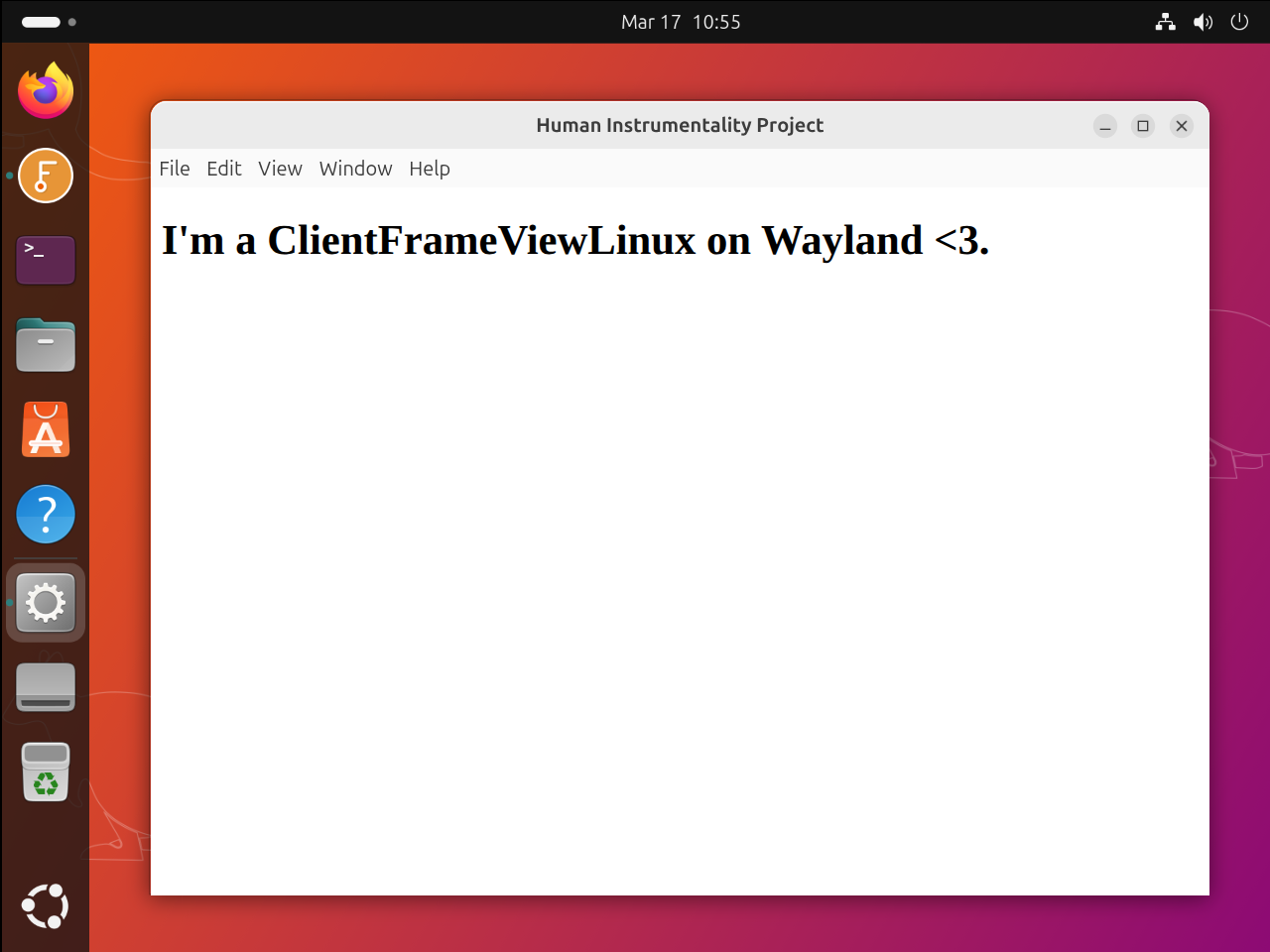
But client-side window frames are not an exact match for server-side decorations (SSD) from X11 window managers. They need to be implemented by each app or framework, so the details can look noticeably different when you put apps side by side, from their title bar areas right down to their drop shadows and corner shapes.
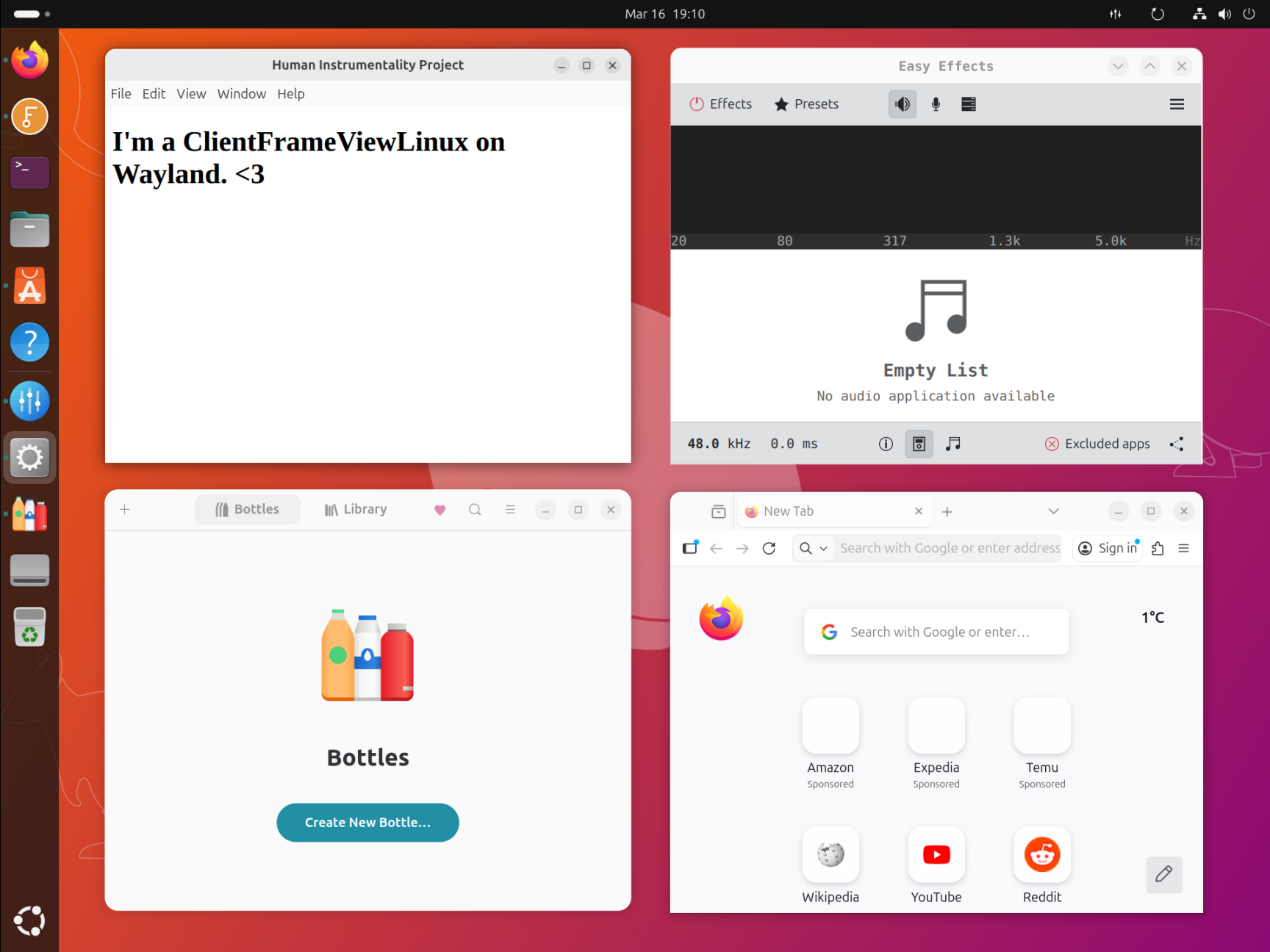
The differences are usually minor, but when CSD is completely absent from a window, the result can be visually jarring.
Many popular apps, including Visual Studio Code, Obsidian, and Discord, use frameless windows with custom title bars. Prior to Electron 41, frameless windows did not support CSD at all, so they looked like featureless rectangles on Wayland.
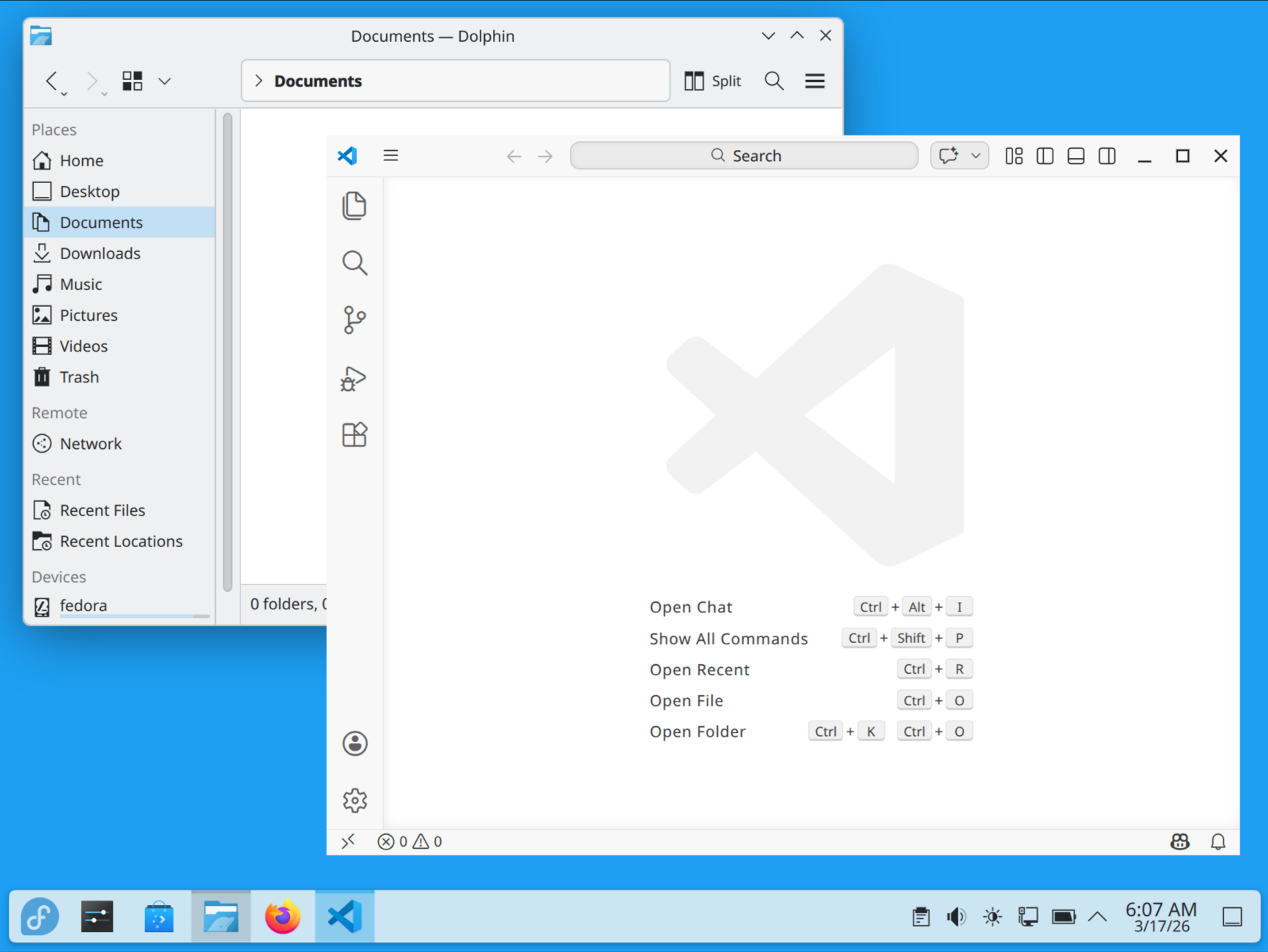
Improving coverage for CSD was a task with framework-wide consequences. The biggest obstacle involved window sizes and how to measure and set them accurately. Electron already manages two different kinds of window boundaries:
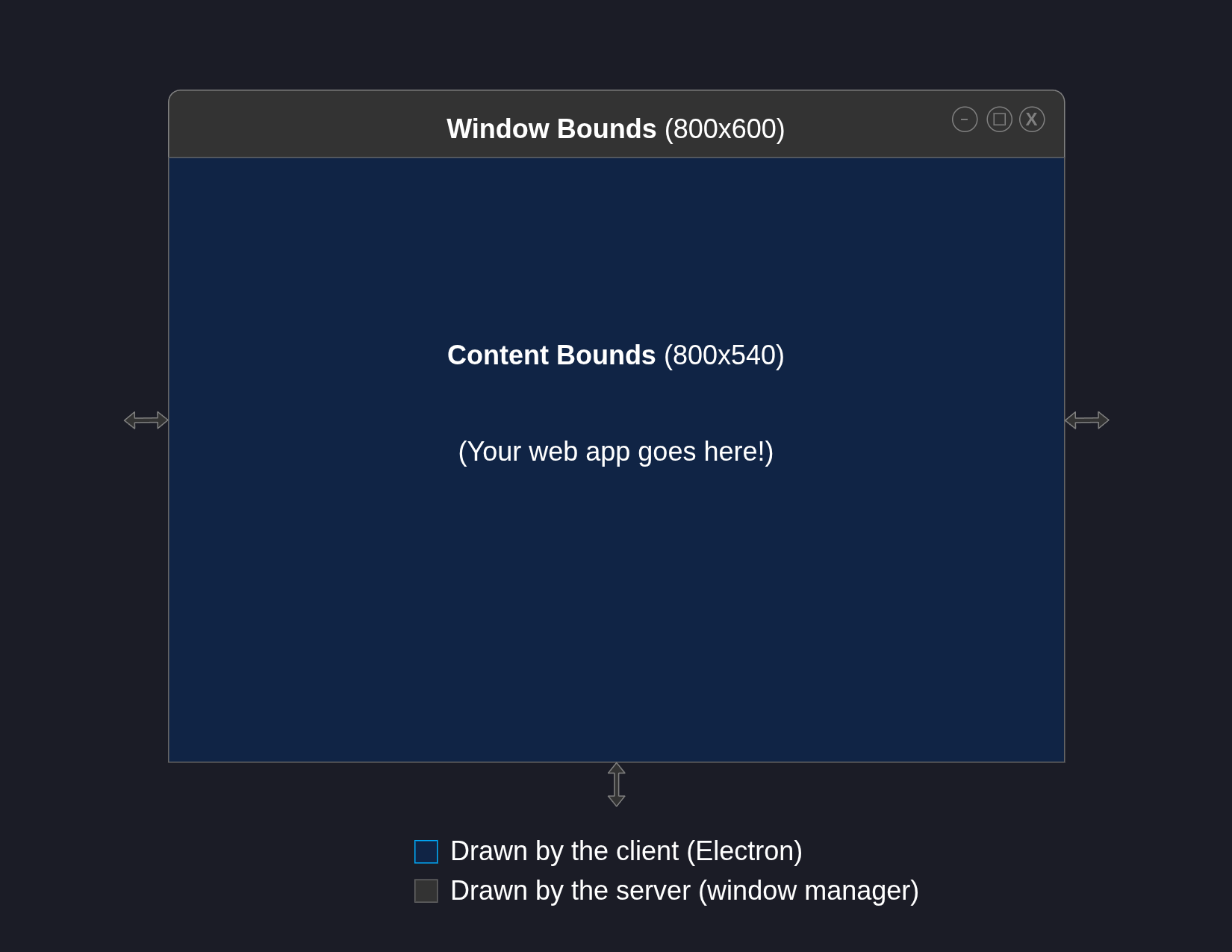
- “window bounds”, the size of the window, including its titlebar, menubar, and frame.
- “content bounds”, the size of the internal web view which hosts the app’s web content.
Both values can be controlled independently. If a developer calls for an 800x600 window, Electron calculates the height of the title bar and shrinks the web app to something like 800x540. (It also works the other way around for content-sized windows.)
To support CSD, Electron also needed to keep track of a new kind of boundary:
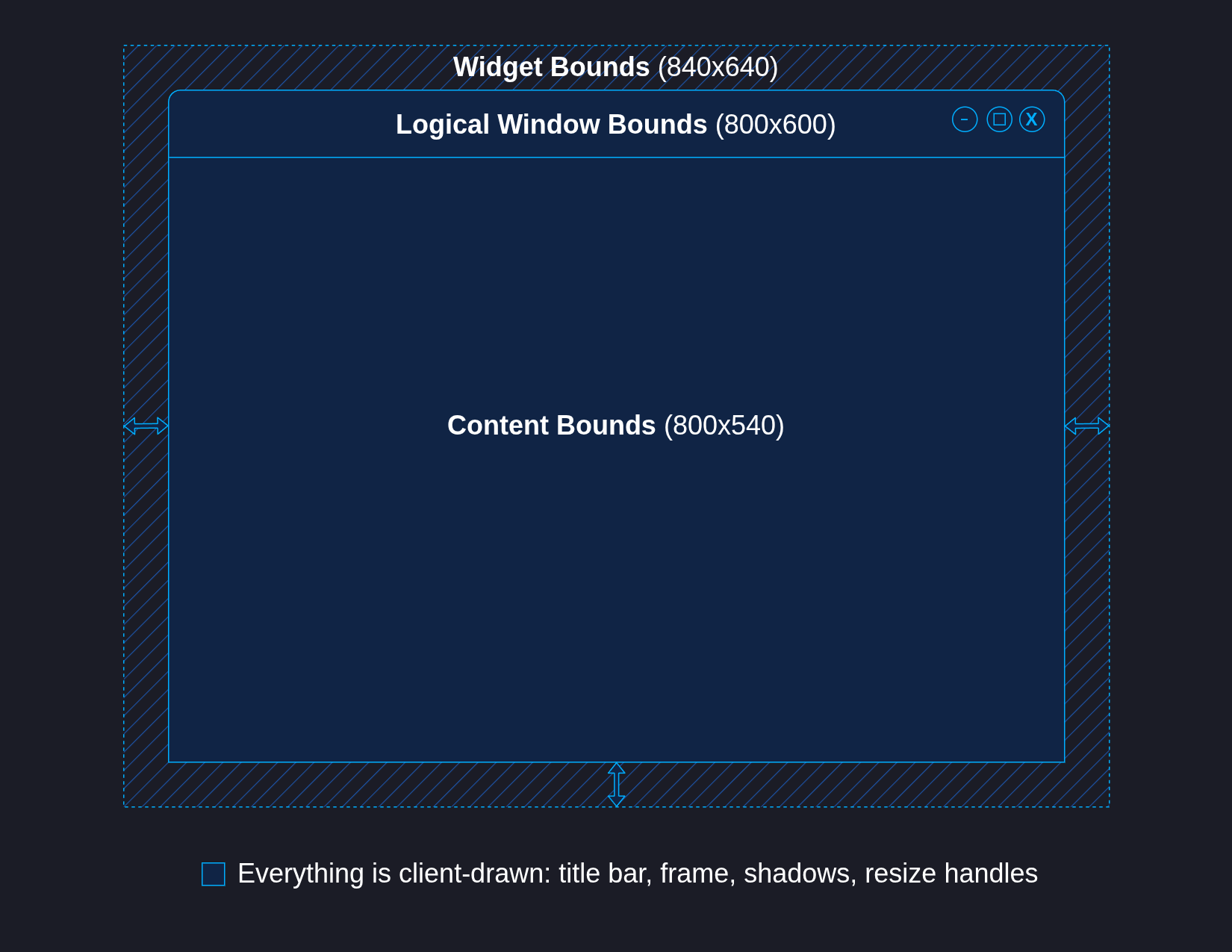
- “widget bounds”, the size of the transparent widget which draws everything inside of it, including the window frame and its external decorations.
When CSD is required, Electron first takes the window's underlying surface (accessed internally via a Chromium accelerated widget) and inflates it so it's large enough to fit all the decorations.
The framework then paints the opaque bits of the window (title bar, frame, and web content) at their appropriate sizes and positions inside the transparent widget. The outermost areas are filled in with drop shadows and resize hit targets, creating the look and feel of a native, three-dimensional window without relying on server-side decorations.
With CSD, a "logical" window at 800x600 might be inset into a 840x640 widget. The exact geometries depend on the user's theme and the window's state: whether it is currently active, maximized, tiled, or fullscreen can affect the size and presence of decorations.
Of course, widget bounds should never leak into the public API. The framework needs to abstract this complexity away from app developers, who are generally not thinking about the extents of resize targets or shadow insets changing underneath them.
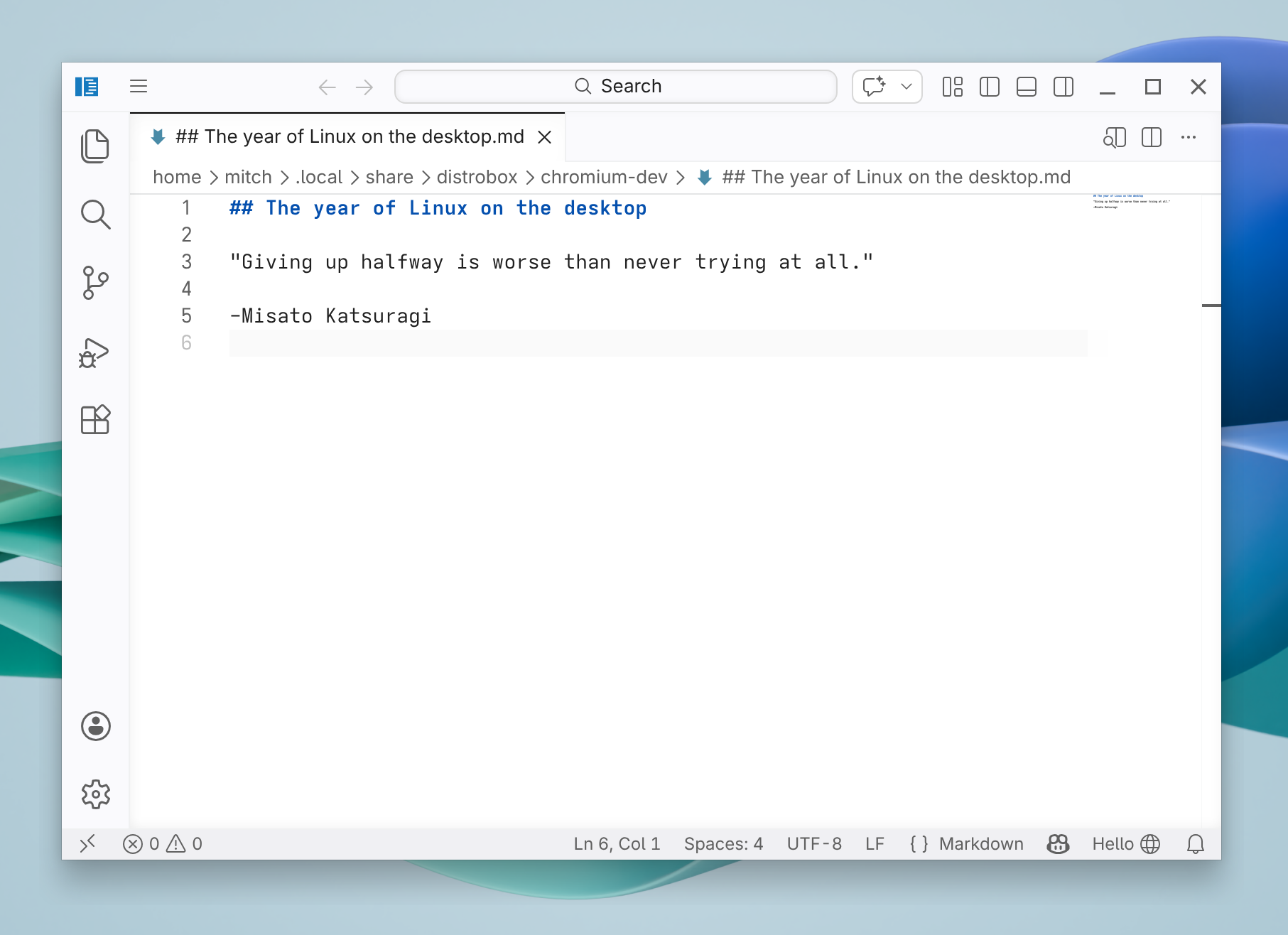
The good news is that much of this was sorted out between last September and March, and as a result, Electron 41 supports CSD on Wayland in all window configurations, including frameless windows with Window Controls Overlay.
What’s next — and how you can help
Wayland is an everyday reality for Linux users in 2026, so a great Wayland experience is now just what it means to support Linux.
Electron reached an important milestone last month with the creation of a Wayland test job in CI. More tests still need to be ported over, but it’s now much easier to catch regressions.
Now that the basic support is in place, Wayland opens up new possibilities for Electron apps. CSD in particular offers developers more ways to customize window frames and integrate them with both their web content and the platform. Let us know what you'd like to see; one feature that's high on my own shortlist is rounded corners.
The framework is only part of the story. If you develop an Electron app and you haven’t thoroughly tested it on Linux in a while (even as recently as last fall), give it a spin with Electron 41+ on a modern distribution like Ubuntu 25.10 or Fedora 43. Try your app on both KDE Plasma and GNOME, and maybe something more exotic like Niri.
You may discover changes you could make to accommodate Wayland's unique constraints. Some differences are covered in the Electron documentation, but the best way to understand the new environment is to use it.
And if you’d like to see faster progress and support for more platform features, consider becoming a contributor. Like Linux itself, Electron is a community-run free software project that’s open to everyone, and we're actively looking for Linux contributors and maintainers.
Electron powers many of the most popular desktop apps across platforms, so getting involved is an effective way to help make desktop Linux more viable for millions of people.